

September 2, 2026
How to Accept Crypto Payments on Shopify: Three Paths and One Dead End
Read article

A customer asks whether they can pay in USDT. You open the plugin catalogue, see a dozen names, install one — and either your payment service isn't in there at all, or the free version stops being free sooner than you planned. The thing to understand first: a new line on the WooCommerce checkout page comes from server-side PHP code written for your store and shipped as a plugin. If your payment service has no WooCommerce plugin, nobody has written that code for you yet. Not "hard to find" — not written.
That's a fork, not a dead end, and it has three roads. One: switch on an offline payment method WooCommerce already ships with, put a payment link into its instructions, and mark orders paid by hand. Today, no code. Two: put a payment widget on a page — good for one-click purchases, services and invoices, useless for a cart with line items and shipping. Small code job, but a code job. Three: have a developer build a payment module on the official gateway class, so crypto sits at checkout next to cards and orders close themselves. Two questions choose for you: how many crypto orders a month you are willing to reconcile by hand, and whether your buyers need a cart at all.
Every line your buyer sees at checkout is there because PHP code on your hosting told WooCommerce about it: a class extending WC_Payment_Gateway, registered through the woocommerce_payment_gateways filter. Gateways "should be created as additional plugins that hook into WooCommerce" — the recommended packaging on WooCommerce's Payment Gateway API page, which also points to a separate integration guide for the newer Checkout block. Two documented routes to a checkout line, then, and both are code.
The consequence that matters for you is the good one: the door is open. WooCommerce runs on your own hosting and the gateway class is public, so any PHP developer can build that module for any service with an API. On Shopify the checkout page is closed to everything but approved apps. Here you're never locked out. You only decide whether to pay for the key.

Path one: an offline method plus a payment link. For a store with a handful of crypto orders a month. Needs nothing but the WooCommerce admin. Gives you a real crypto option at checkout today. Costs you manual reconciliation on every order, and a gap between order and shipment.
Path two: a payment widget on a page. For a shop selling one thing, a service, a fixed invoice, or taking donations — the same setup covers crypto donations on streams and in communities. Needs someone comfortable editing theme files — and on WordPress.com, a plugin-enabled plan with hosting features activated. Gives you a payment window on your own site, amount fixed or typed by the customer. Costs you the cart: no line items, no calculated shipping, no coupons.
Path three: your own payment module. For a store where crypto orders arrive daily. Needs a developer, a quote in writing before you commit, and a service with a documented API. Gives you crypto in the checkout list next to cards, orders marked paid automatically, statuses behaving as they do for cards. Costs you a one-off development bill plus keeping the module alive across WooCommerce versions.
WooCommerce ships with offline payment methods — the ones stores used for bank transfer long before crypto existed. The buyer picks one, reads your instructions, pays separately, and you confirm. Nothing stops those instructions from holding a payment link instead of bank details.

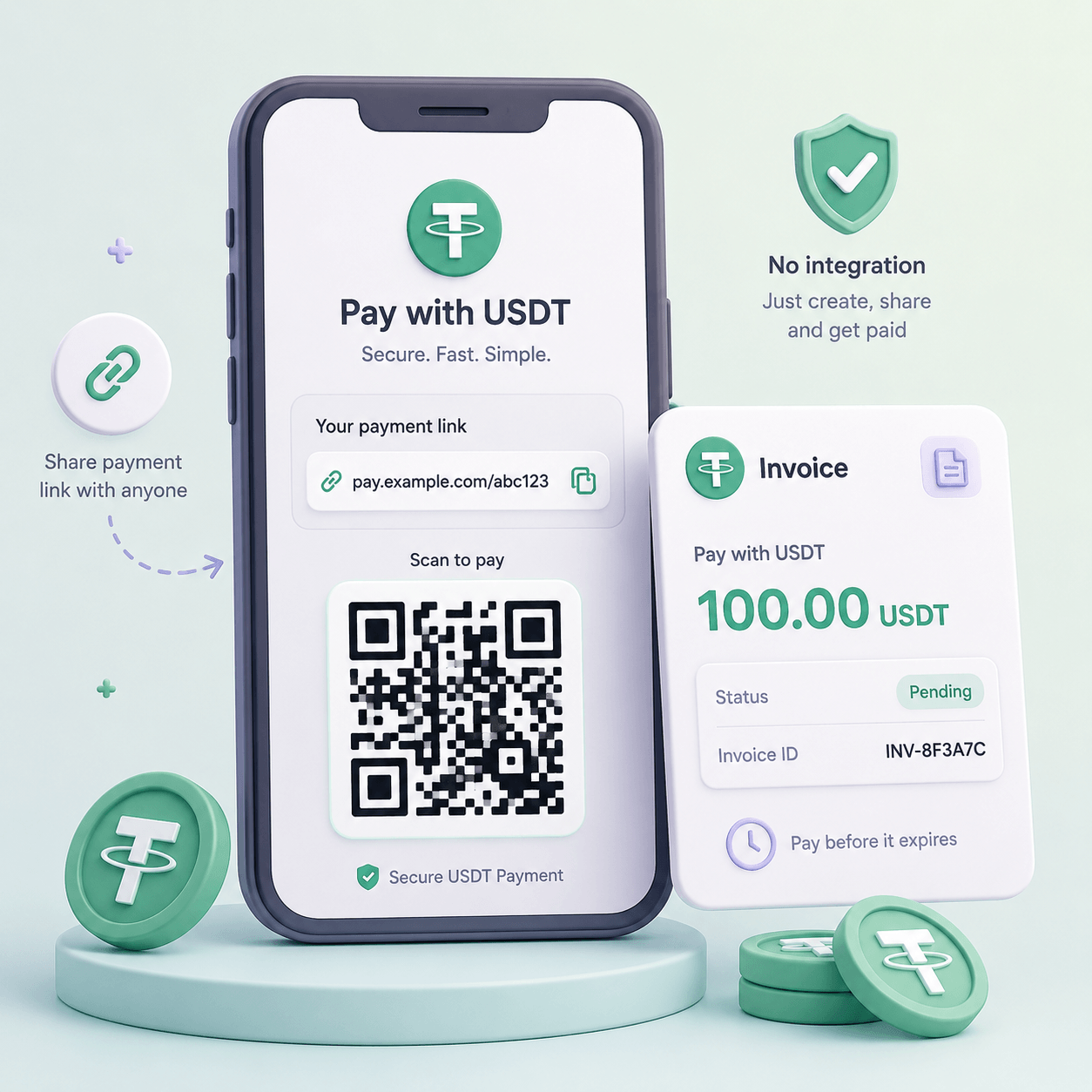
CryptumPay fits this path with no integration work: the invoice is created in the console and the link goes anywhere, the fee is 1% per successful payment (from 0.5% at volume, and it can be passed to the customer), and funds convert to USDT on arrival, so the balance doesn't sit in a coin that moves overnight. Underpayments and overpayments CryptumPay handles automatically — the customer who sends 49.87 instead of 50 is the classic headache on this path.
Here the three offline methods stop being interchangeable, and blurring them costs inventory.
Direct bank transfer and check payments both put the order into On hold — check orders "remain in On hold status until you verify that the payment has cleared" (check payments). Cash on delivery is different: WooCommerce sets those to Processing, not On hold (cash on delivery). Rename cash on delivery to "Pay in crypto" and every unpaid order will look paid. Don't.
Now the part that decides how long orders may sit. Per WooCommerce's glossary of order statuses: On hold means awaiting payment confirmation, and stock is already reduced. Pending payment means the order was received but no payment has been made — and about stock the glossary says nothing here, which is not the same as saying it's safe. Bank transfer and check won't put a crypto order there; they go to On hold. So if you do find one sitting in Pending payment, don't assume the item is still on the shelf — open the product and read its stock count before you promise it to anyone else. Processing means payment received and stock reduced — the normal "get it packed" state.
So an On hold crypto order holds your inventory while you wait. At five orders a month, irrelevant. At fifty, you need a rule for how long an unpaid order lives before you cancel it and release the stock — written down before you turn crypto on, not after your first sold-out weekend.
Verdict first: on your own hosting a widget is a short job for whoever edits your theme code; on WordPress.com it depends on two switches, not one.
Which one are you on? If you pay a hosting company and upload plugin files yourself, it's self-hosted WordPress — the usual case for a WooCommerce store. If your plan decides which plugins you may install, it's WordPress.com.
Self-hosted. A widget is a script plus a callback, and the official way to load one is wp_enqueue_script() on the wp_enqueue_scripts hook (including assets in a theme). One caution: WordPress already bundles many common third-party libraries, and the bundled copy is the one to use — loading your own version is how you end up in conflict with plugins.
WordPress.com. This is where people get burned. Installing plugins "is available on all WordPress.com paid plans: Personal, Premium, Business, and Commerce" (plugins on WordPress.com). Custom code is a second and separate condition: script, iframe, form, style and link tags run on sites with a plugin-enabled plan and hosting features activated (custom code on WordPress.com). Don't assume it comes attached to the cheapest plan that allows plugins. Before you pay for a year, ask WordPress.com support in writing whether your exact plan will run a third-party script — otherwise your widget sits on the page doing nothing.
Then the widget's ceiling, whichever hosting you're on. It charges the amount you hand it. One product, a service, a donation, a fixed invoice — fine. An order with line items, calculated shipping and a discount code goes back to path three. The trade-offs are laid out in widget, plugin or API.
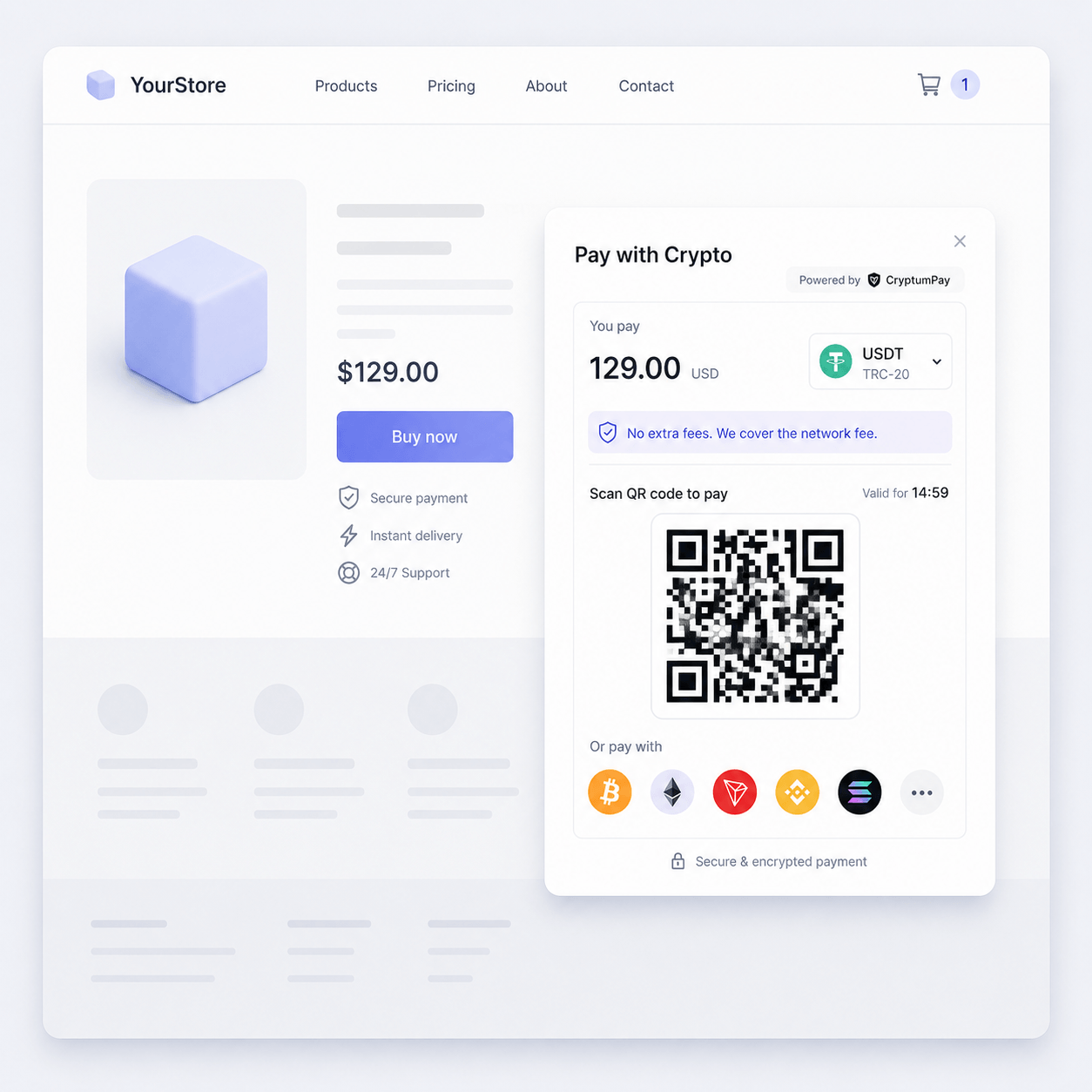
With the CryptumPay widget, one thing gets settled first: the store's domain has to be added to the project in the console, or the widget won't work. Connecting it is a script plus a callback that fires when payment finishes. CryptumPay also has a free-amount version, where the customer types the sum — the one for services, tips and donations.
Four things get built, and the list is short enough to paste into an email.

Item four is where money gets lost. A payment goes through several states before the money is actually yours, and the early ones only mean the transaction has been seen. A CryptumPay payment is your money at finished, not at pending. Ask your service which single state means "credited", and have the module react to that one and nothing else.
CryptumPay has no ready-made WooCommerce module; what it hands your developer is a documented API, which is what the four items above are built on.
Your store can be told from outside that an order is paid — a documented feature, not a hack. WooCommerce has its own REST API, an official way in for other programs, and an order's status is a field it can write. So the moment your server hears the payment finished, the module sets that order to processing or completed and it leaves On hold without you opening the admin at all (orders in the REST API).
Your own part is one screen. The key lives under WooCommerce, Settings, Advanced, REST API: generate it with write permission — read-only can't change a status — and copy the secret before you leave the page, because it's shown once. Forward that page to your developer with the four items above, plus one note: the legacy REST API left WooCommerce core and now lives in a separate plugin (REST API setup).
One warning worth keeping in your own head. WooCommerce has a screen called Webhooks, and it is not the thing you need here: a WooCommerce webhook is your store notifying the outside world about an order, not your store receiving a payment service's callback (WooCommerce webhooks). A developer who answers item three with "we'll just use WooCommerce webhooks" has the arrow backwards.
Pick the payment service first, the path second. Almost everyone does it the other way round. Ask about the percentage per payment, the withdrawal minimum, whether funds sit in a hold period, whether there's a withdrawal fee on top of the network fee, and which coins and networks are covered. Services differ sharply on those points, and none of it is on a catalogue page. Ask in writing, and keep the answer. The arithmetic of a single crypto order is broken down in what a crypto payment costs an online store.
Then three costs of your own, and only one is a percentage.
The processing fee is the service's cut, taken per payment. Where a service lets you pass it to the customer, your own crypto cost drops to whatever the integration took.
The development cost is a one-off, quoted locally, and it's the same four items whether you take five orders a month or five hundred.
The manual cost is per order — open the explorer, match the amount, mark the order paid.
How to choose, plainly. No cart in the business — one product, a service, an invoice? Path two, at any volume. With a cart, the choice is arithmetic you can do before your first crypto order: say one reconciliation takes five minutes. Five orders a month is about twenty-five minutes, so path one, and it stays the right answer for years. Fifty is a bit over four hours, every month. Price your own hours at your own rate and set them against the developer's quote — the quote is paid once, the hours are not.
One legal line, and it isn't legal advice: whether you may accept crypto, and how you must record it, depends on your country and sometimes your buyer's. The jurisdiction-by-jurisdiction picture, with dates, is in the general guide to accepting crypto on a website — read it before your first sale.
Because the checkout list is built from code registered inside your store, and an account isn't code. Your dashboard and API key are raw material for that code. Nobody at the payment service can add a line to your checkout remotely. Either someone writes the module, or you take a path that doesn't need one.
Create an account and connect the checkout yourself, or talk to sales and we will plan the integration with you.