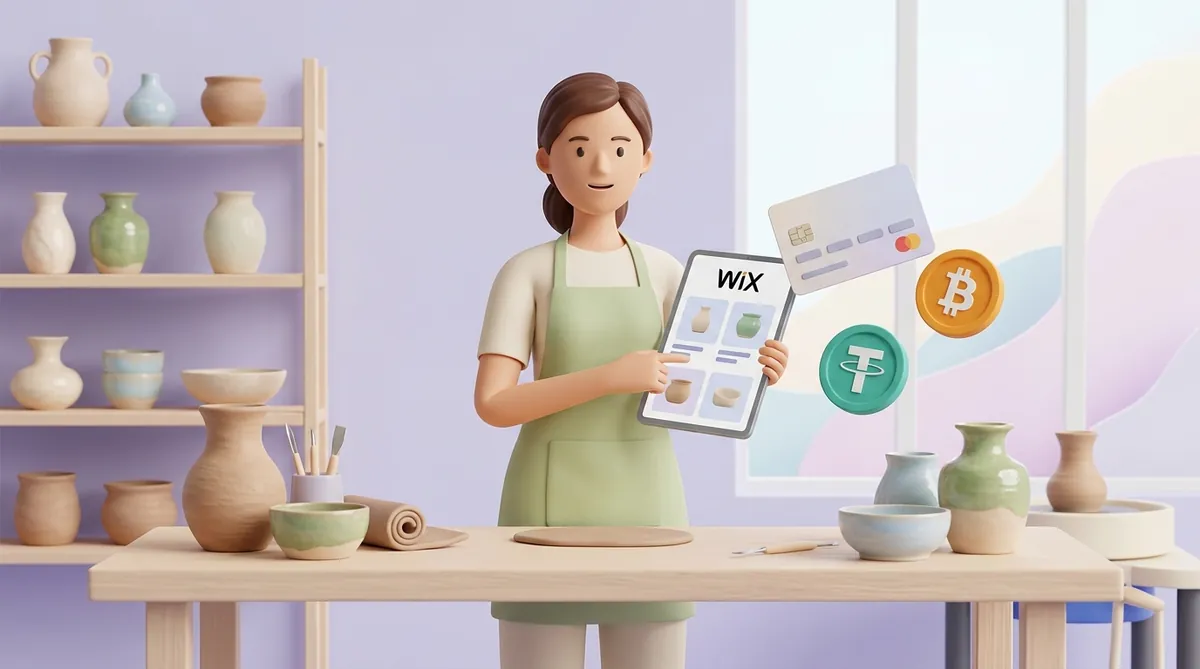
A Wix site can take payments once it has two things: a paid plan that includes payments and at least one connected way of getting paid. That way can be crypto, Wix's own card processing called Wix Payments, another card or wallet provider, or manual payments such as cash and bank transfers. Which of them Wix offers you depends on the country your business is registered in.
Can you accept payments on Wix without a premium plan?
Not through Wix itself. Wix's checkout, Pay buttons, payment forms and even manual payments only work on a site upgraded to a plan that supports payments.
On Wix's current lineup that means Core, Business or Business Elite. The Free and Light plans don't include accepting payments, and on them the setup stops at an upgrade prompt. The site also has to be published. The plan's price depends on your country and on monthly or yearly billing, so check it on your own Wix pricing page.
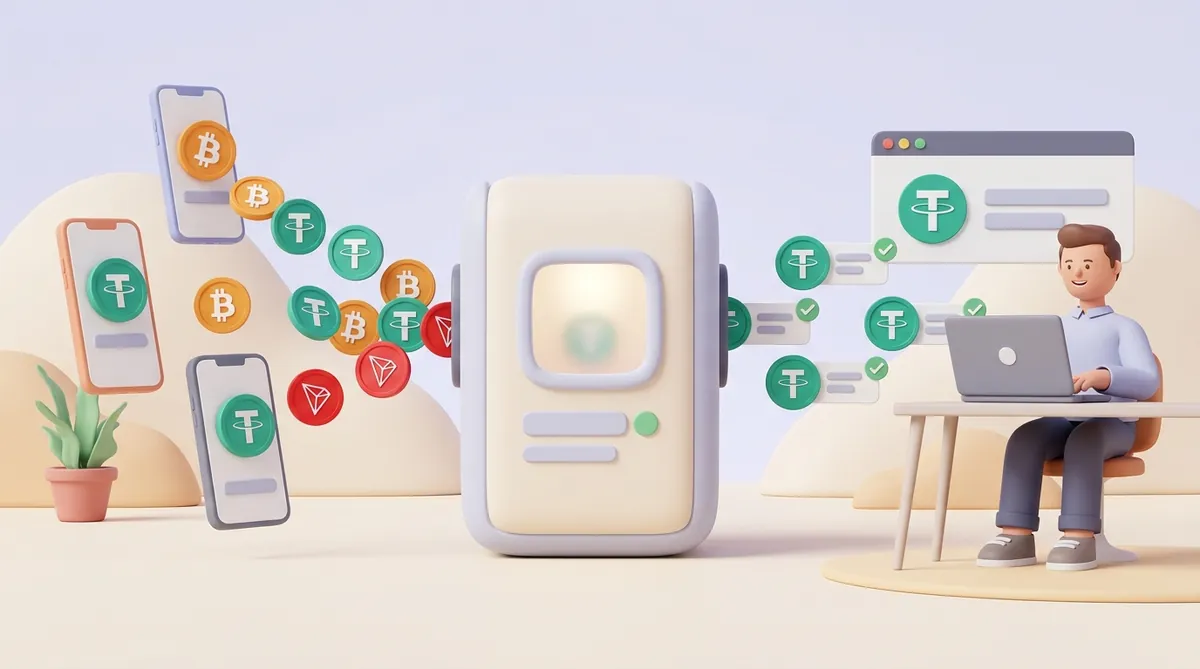
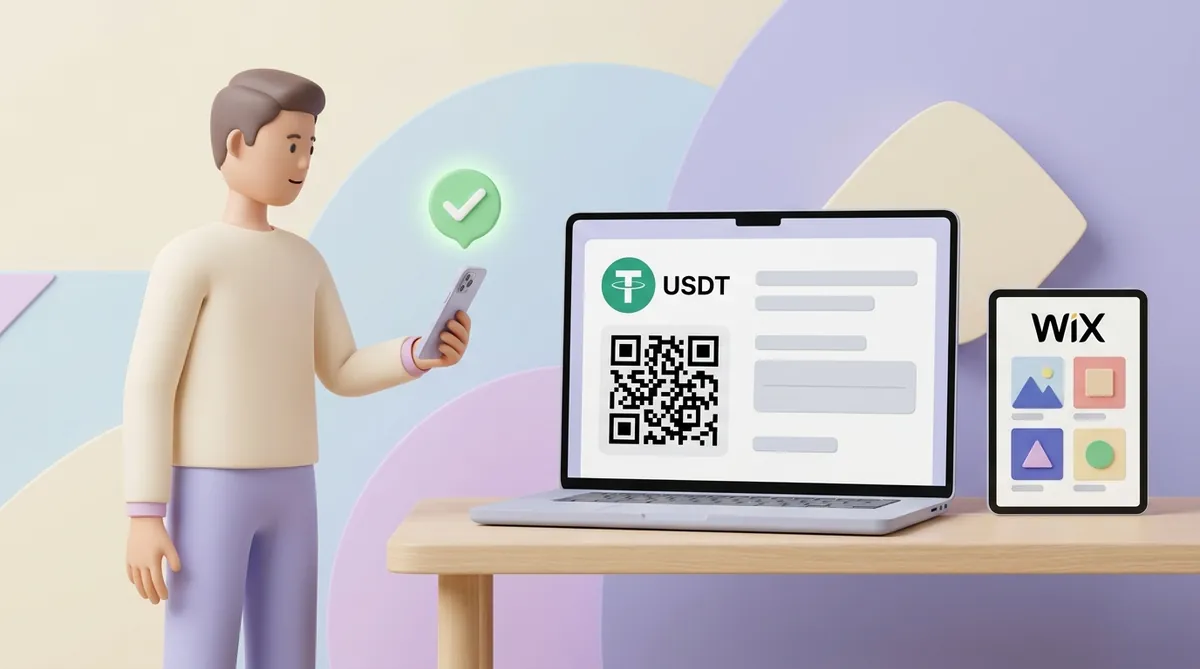
One route doesn't depend on the plan: a payment link from an outside service. The customer clicks an ordinary button or a link in a message, lands on the provider's payment page and pays there, so Wix never touches the money. The cost is that Wix doesn't know the payment happened: you keep track of who paid yourself. If your customers are comfortable paying in crypto, you can take USDT through payment links and QR invoices without a full integration.
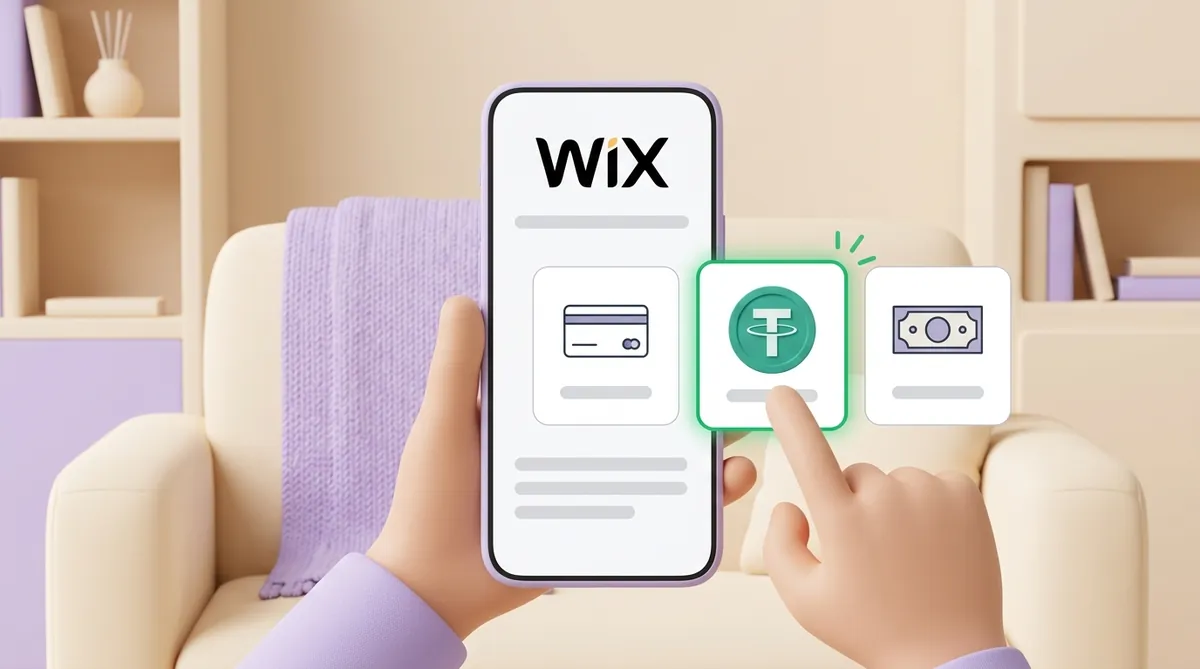
Which payment providers and methods you can connect
Everything lives under Settings, then Accept Payments, in the Wix dashboard. There are four kinds of options:
Crypto. Wix connects several crypto providers directly, each only for businesses in its own list of countries. Outside that list, a crypto payment service's link or widget does the same job; the crypto section below goes through both.
Wix Payments. Wix's own provider takes major cards, Apple Pay, Google Pay, PayPal, Klarna, iDEAL and more, depending on your location, and pays everything into one account. It serves businesses in fourteen countries in North America and Europe, plus existing users in Brazil.
Third-party providers. Wix works with more than 70 card and wallet providers worldwide, from global names to local banks. The ones offered to you depend on your business location, and each runs its own account, fees and payouts.
Manual payments. Cash, cheques, bank transfers or anything else you collect outside the site and record on Wix by hand.
What a customer sees at checkout is the sum of the providers you've connected. Each one adds its own methods, and even inside one provider the methods differ by country.
How to set up payments on Wix, step by step
Upgrade the site to a plan that includes payments. That is Core, Business or Business Elite; on Free or Light, the payment setup won't go past the upgrade screen.
Publish the site. Wix Payments doesn't take payments on a site that hasn't been published.
Open Accept Payments and check your business location. The providers Wix shows depend on that country, so it has to be the country your business is actually registered in.
Connect a provider. For Wix Payments you enter your business and bank details; for a third-party provider you sign in to its account or paste the keys it gives you.
Match the currencies. The currency of your Wix site and the currency of your provider account must be the same, or transactions may be declined.
Finish verification. Your first Wix Payments payout is scheduled only after your account is verified, and third-party providers run their own checks.
Place a test order. Go through checkout as a customer would and confirm that every method you expect is there.
How much it costs to accept payments through Wix
You pay twice: once for the plan, and again as a processing fee on every payment. Wix Payments' default card fees by region:
United States: 2.9% + 30¢ per transaction.
Canada: 2.9% + C$0.30.
European Union: 1.9% + €0.30.
United Kingdom: 2.1% + £0.20.
Switzerland: 2.3% + CHF 0.30.
So a $100 order in the US costs $3.20 in fees, and $96.80 reaches your balance.
Some payments cost more than the default. US figures, for scale:
Klarna. Paying in instalments through Klarna costs the seller 6% + 30¢.
PayPal through Wix Payments. It is offered only to US businesses, from 3.49% + 49¢.
Foreign cards. A cross-border fee of 1.5% is added when the customer's card was issued outside your business country.
Currency conversion. Another 1% applies when your site sells in several currencies and the payment has to be converted.
If most of your buyers are abroad, those surcharges add up, and some of their payments won't go through at all. Sellers in that position have other ways to accept international payments from customers abroad.
Refunds have a cost too. Wix Payments doesn't charge a separate refund fee, but it keeps the original processing fee: refund that $100 order and the $3.20 stays with Wix.
Third-party providers set their own prices, and you pay them in their own accounts. The crypto providers below are an example: their fees have nothing to do with Wix's card rates.
Does Wix accept crypto?
Yes, a Wix site can take crypto, though not through Wix Payments. A crypto payment service takes the coins from your customer and credits you, so you don't have to watch a wallet for incoming transfers. Here are four services that work with a Wix site, each in its own way:
CryptumPay. It works alongside Wix's provider list rather than inside it: a payment link you send or put behind a button, or a checkout widget added to the site with a script.
Bankful. It connects inside Accept Payments and takes Bitcoin alongside cards and wallets, at 3.95% + 20¢ per crypto transaction. It is offered to businesses in the US, Canada, the UK, Puerto Rico and twelve European countries, among them France, Germany and Italy.
Triple-A. It also connects inside Accept Payments and takes Bitcoin, Bitcoin over the Lightning network, Ether and USDT. It is offered to businesses in Australia, Brazil, Canada, Singapore, the UK and the US, and Triple-A, not Wix, handles payouts, refunds and disputes.
CoinGate. It connects inside Accept Payments too and takes more than 70 cryptocurrencies, Bitcoin, Litecoin and Ether among them, from 1% per transaction. It is offered to businesses in Australia, Canada, Cyprus, the Czech Republic, Germany, Hong Kong, Lithuania, the Netherlands and Spain.
CryptumPay's link and widget don't depend on which providers Wix lists for your country. Bankful, Triple-A and CoinGate appear in Accept Payments only for businesses in their own countries, so a seller registered somewhere else won't see them there.
Ways to accept. Payment links: you create an invoice in the console and send the link anywhere, with no code and nothing added to your site. A checkout widget: one button on your site that opens the full checkout in a window. And an API for developers.
Price. 1% per successful payment, down to 0.5% at higher volumes.
What you receive. Whatever coin the customer pays with, CryptumPay converts the payment to USDT, a coin pegged to the US dollar, as soon as it arrives.
Withdrawal. At any time, with no minimum, to the address you specify.
Verification. Identity verification (KYC) is mandatory for every seller, and without it withdrawals aren't possible. CryptumPay needs a website for the project review, not for the integration.
On Wix, the payment link is the shortest route. Nothing has to be added to the site: you create an invoice in the CryptumPay console and send the link by email or chat, or put it behind an ordinary Wix button. Wix's order list doesn't learn about these payments, so you match them to orders yourself.
The widget lives on the site itself, and on Wix it needs three things:
A published site with your own domain. Wix lets third-party scripts in through Settings, then Custom Code, into the head or body of all pages or chosen ones, and only on a published site with a connected domain.
The same domain authorized in CryptumPay. The widget works only on domains added to the project in the CryptumPay console.
Someone who can insert the script and handle the callback. The callback is the message CryptumPay sends when a payment comes through. A Wix site can receive it through HTTP functions in Velo, Wix's coding platform, which means writing backend code.
Wix doesn't help with problems in third-party code, so the person who installs the widget also maintains it. Whether that work pays off depends on how many payments go through the site and on whether an HTML widget suits you better than an API or a plugin.
Why Wix says a payment method is not available
Sometimes customers reach checkout and are told the site can't accept online payments at the moment, or a method you set up simply isn't there. Wix names these causes:
The plan doesn't include payments. Upgrade to Core or higher; Wix deducts the remaining credit of your current premium plan from the upgrade price.
No payment method is connected. At least one provider, or manual payments, has to be set up in Accept Payments.
The site isn't published. Wix Payments starts taking payments only on a published site.
The provider isn't offered in your business location. Providers differ by country, so check that the location in Accept Payments is the country your business is registered in.
The currencies don't match. Change the currency in your Wix site settings or in the provider account so the two are the same.
The provider account isn't active. It may still be in test mode, still being verified, or under a hold from the provider.
No shipping rule covers the customer's country. In a Wix store, a customer from a country without a shipping, delivery or pickup rule can't check out.
A discount pushes the price below zero. A $10 coupon on a $5 product makes the total negative, and checkout fails.
When the problem is the country itself, no setting fixes it. If Wix Payments doesn't serve your country and none of the third-party providers listed for it will take your business, the dashboard has nothing more to offer; Wix, for example, stopped processing payments in Russia on 7 March 2022. Sellers in that position look for rails that work from where they are, and the options are much the same as when Stripe isn't available in your country.
In short
To accept payments on Wix, you need Core, Business or Business Elite, a published site and at least one provider connected under Accept Payments. Wix Payments is the simplest card option if your country is covered; otherwise a third-party provider fills the gap. Crypto comes either from a provider Wix connects in a few countries or from an outside payment link or widget that doesn't depend on Wix's list.
FAQ
How long does it take to get your money from Wix Payments?
Your first payout is scheduled only after your Wix Payments account is verified, and a first payment becomes available for payout within about seven days on average. After that you choose a daily, weekly or monthly payout schedule. Once a payout is sent, it takes 3–5 business days to reach your bank.
Which countries can use Wix Payments?
Businesses in the United States, Canada, the United Kingdom, Switzerland and ten eurozone countries: Austria, Belgium, Finland, Germany, Ireland, Italy, Lithuania, the Netherlands, Portugal and Spain. Brazil is supported only for sellers who already have Wix Payments. France, for one, isn't on the list, and Wix sends sellers outside it to third-party providers.
How do manual payments work on Wix?
You write instructions telling customers how to pay you, by cash, bank transfer or another method, and mark the order as paid once the money arrives. Manual payments still need a plan that supports payments, and they can't be used with Wix Pricing Plans. A manual payment also can't be refunded, deleted or changed from the Payments tab.
Start accepting crypto payments
Create an account and connect the checkout yourself, or talk to sales and we will plan the integration with you.