en

How to use Trust Wallet, from your first wallet to cashing out

Published
10.11.2026
Updated
10.11.2026
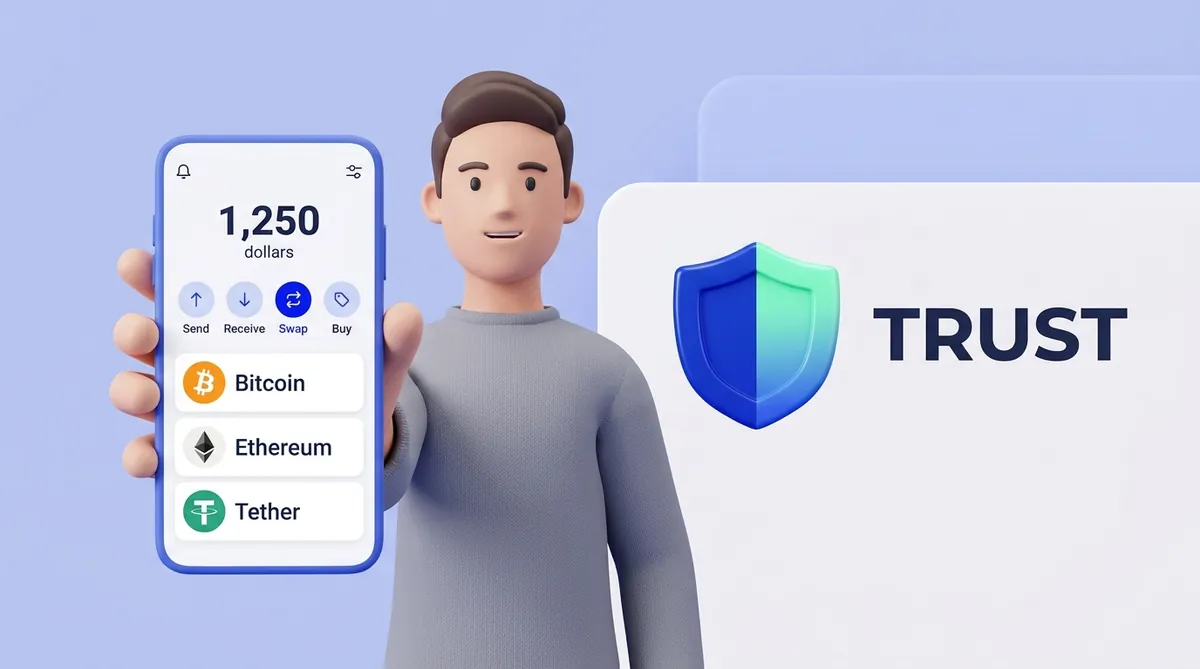
A man in a grey sweater holds up a phone with the Trust Wallet app showing a balance, Send, Receive, Swap and Buy buttons and a token list, next to the blue-and-green Trust shield logo
Contents

    Trust Wallet is a free phone app that holds your crypto under your own control, with no bank or exchange in the middle. Using it comes down to saving one 12-word phrase, switching on the coins you want to see, and checking the network every time money moves. Nobody at Trust Wallet can reset your access or undo a transfer, so those three habits are what keep your money safe.

    Before you use Trust Wallet: set it up and save your recovery phrase

    Creating the wallet takes a few minutes and three steps:

    1. Install the official app. Get Trust Wallet from the App Store or Google Play, ideally through the link on Trust Wallet's own site, because fake wallet apps exist to steal what you put in them.
    2. Create the wallet. Open Trust Wallet and tap Create a New Wallet on the welcome screen.
    3. Set a PIN. Choose a Trust Wallet PIN and, if you like, turn on Face ID or fingerprint. The PIN locks the app on this phone but backs nothing up, and Trust Wallet can't reset it.

    Trust Wallet then lets you into the new wallet without asking for a backup. Your recovery phrase, the 12 words that restore your wallet, is still saved nowhere but this phone. The app calls it a secret phrase, and you should back it up straight away:

    1. Open the wallet's backup menu. In Trust Wallet, tap the gear icon for settings and select your wallet. In some versions you tap the wallet name at the top of the home screen, then the three dots beside it.
    2. Choose the manual backup. Select the manual option, tap Back up now if the app shows it, and unlock with your PIN or Face ID.
    3. Write down the 12 words. Copy the recovery phrase onto paper, in order, because Trust Wallet doesn't allow screenshots of this screen.
    4. Confirm the order. Tap the words in the order Trust Wallet asks for, which proves your paper copy is correct.

    The menus in Trust Wallet shift between updates, so treat the button names in this guide as a November 2026 snapshot.

    Trust Wallet also has an optional cloud backup. It keeps an encrypted copy of the phrase in your own iCloud or Google Drive, locked with a password you set. Trust Wallet can't reset that password, so store it separately.

    Those 12 words, also known as a seed phrase, work on any phone, and whoever holds them holds your money. Keep the paper offline and never photograph it. If your wallet already exists and you can't remember where the words are, here is how to find the seed phrase in a wallet you already use.

    Start accepting crypto payments with CryptumPay
    Create your first invoice right after sign-up
    Create account

    How to add TRC20 USDT to your Trust Wallet

    A new Trust Wallet shows only Bitcoin, Ethereum and BNB. USDT, a stablecoin pegged to the US dollar, is available in the app but stays hidden until you switch it on. TRC20 is the label for USDT on the TRON network, and the app treats USDT on each network as a separate line.

    Here is how to switch on USDT on TRON:

    1. Open the full coin list. On the Trust Wallet home screen, tap Tokens, or scroll down and tap View all.
    2. Go to Manage crypto. Tap the toggle icon at the top right of the coin list, then tap Manage crypto.
    3. Search for USDT. Type USDT in the search bar on the Manage crypto screen. If the list is long, tap All Networks and select TRON.
    4. Switch on the TRON line. Tap the toggle beside the USDT marked TRON or TRC20, and it appears on your home screen.
    A hand holds a phone with the blue-and-green Trust Wallet shield, a USDT search and three USDT rows for TRON, Ethereum and BNB, and only the TRON row is switched on

    Switching the line on doesn't put any USDT in the wallet. It only tells the app to display a balance, which stays at zero until someone sends you USDT.

    The line you switch on has to match the network the money will arrive on. If nobody has told you which one to use yet, the answer differs for people sending USDT and people getting paid in it, as explained in which USDT network suits senders and which suits merchants.

    If USDT isn't in the search results

    USDT on TRON is a mainstream token, so it should be in the list. If yours doesn't show it, you can add it by hand:

    1. Get the contract address. A contract address identifies a token on its network. Copy the one for USDT on TRON from Tether's own site or a verified listing on CoinMarketCap or CoinGecko.
    2. Open the add screen. On the Manage crypto screen in Trust Wallet, tap the + icon at the top right.
    3. Choose the network. Select TRON, because the same token has a different contract address on each network.
    4. Paste and import. Paste the contract address, check that the name and symbol fill in as USDT, and tap Import.

    Adding a token by hand doesn't prove it's real. A fake USDT can look identical on your screen if the address came from a stranger.

    How to receive money in Trust Wallet

    You can receive crypto as soon as the wallet exists, and it costs you nothing, because the sender pays the network fee. Money here means crypto only: a wallet address can't accept dollars, so someone paying you from a bank account would have to buy crypto first.

    Receiving takes four steps:

    1. Open the coin you expect. On the Trust Wallet home screen, tap the exact line, such as USDT on TRON.
    2. Tap Receive. Trust Wallet shows your address for that coin and network, under a QR code.
    3. Copy the address or show the QR code. Tap Copy and send the address to the person paying you, or let them scan the QR code.
    4. Name the network in your message. Write it out for the person paying you, for example "USDT, TRON network (TRC20)".

    Say a client owes you 200 USDT. You send your address, which starts with T, and write "USDT on TRON only". Once the TRON network confirms the transfer, 200 USDT appears on that line.

    Your wallet has a different address on different networks, and the first characters tell you which is which:

    • TRON addresses start with T. Only transfers on the TRON network can use this address.
    • Ethereum-style addresses start with 0x. Ethereum, BNB Chain and similar networks share one address in your wallet.

    Sharing an address is safe, since it lets people pay you and gives nobody access to your money. To see why, start with what a crypto wallet address is and how to find yours.

    Why your USDT is not showing in Trust Wallet

    If someone says they've sent USDT and your balance is empty, go through these in order:

    • The USDT line is switched off. Trust Wallet only displays Bitcoin, Ethereum and BNB by default, so turn on the matching USDT in Manage crypto.
    • You are looking at the wrong network. USDT sent on BNB Chain won't appear on the TRON line, so ask which network was used and switch on that USDT line.
    • The transfer hasn't finished. Ask the sender for the transaction ID, the code that identifies a transfer, and paste it into the network's public explorer, which for TRON is Tronscan.
    • The address is different from yours. The explorer also shows the receiving address, and if it isn't yours, the money went to someone else and only that person can return it.

    A public explorer is also the quickest check of your own balance. Paste in your address: if the USDT is there and the app doesn't show it, the money is safe and the problem is only the display. You never need to give your recovery phrase to anyone to fix this.

    How to send USDT from Trust Wallet

    Sending takes five steps:

    1. Open USDT on the right network. On the Trust Wallet home screen, tap the USDT line that holds your balance.
    2. Tap Send. The send screen for that USDT line opens.
    3. Enter the recipient's address. Paste the address or scan the recipient's QR code, and make sure the address belongs to the same network as your USDT line.
    4. Enter the amount of USDT. Type how much USDT you want to send.
    5. Check and confirm. Look over the address, amount, network and estimated network fee, then confirm the transfer.

    A confirmed transfer can't be cancelled. For a first payment to a new address, a small test transfer is worth it, at the cost of one extra network fee.

    What you need beside your USDT to cover the network fee depends on the network:

    • USDT on TRON can use TRX or USDT for the fee. Trust Wallet automatically picks whichever is cheaper at that moment. When it costs less than the standard fee, a provider called Tronify rents Energy for you, the resource TRON transfers consume.
    • USDT on Ethereum needs ETH.
    • USDT on BNB Chain needs BNB.

    A USDT transfer on TRON can still fail. That happens when your wallet has too little of both TRX and USDT to cover the fee, for example when you send your entire USDT balance and hold no TRX. Trust Wallet shows the total cost before you confirm. If you are stuck at that point, here is how much TRX a USDT transfer needs and what to do right now.

    On some networks, including Ethereum and BNB Chain, Trust Wallet's FlexGas feature lets you pay the fee in stablecoins or in TWT, Trust Wallet's own token. Tap Network fee on the send screen and choose the token, which must sit on the same address you are sending from.

    What fees does Trust Wallet charge?

    Trust Wallet itself takes nothing for installing the app, holding crypto or sending it. Costs appear when coins move or change into something else, and they differ by action:

    • Receiving costs you nothing. The sender pays the network fee.
    • Sending costs one network fee. The fee goes to the network's validators, the computers that process transfers, and Trust Wallet shows an estimate before you confirm.
    • Swapping costs a network fee, a provider fee and possibly a Trust Wallet fee. A swap trades one coin for another inside the app, and the third-party providers that run it build their fee into the quote. Trust Wallet's own pages differ on a fee of its own. Its swap page says it adds no service fee. Its promotion for stablecoin swaps sets a "Trust Wallet swap fee" to 0% on eligible pairs within the same network, Ethereum excluded, and says a standard fee applies otherwise, without giving the size. So judge a swap by the amount the swap screen says you'll receive.
    • Selling for dollars costs the sell provider's fee. Each provider sets its own rate depending on your region and payout method, and you see it before you commit.

    So moving crypto out of Trust Wallet carries no Trust Wallet fee at all, only the network fee for the transfer. How large that is depends on the network and, on TRON, even on whether the address you are paying already holds USDT. Before you pick a route, compare USDT transfer fees and times on each network.

    How to withdraw crypto from Trust Wallet to a bank account

    Trust Wallet can't pay into a bank account on its own. It holds crypto, a bank account holds dollars or another local currency, and someone has to buy the crypto from you in between. You have three ways to arrange that, and each one starts with a transfer out of your wallet, so make sure the wallet can cover the network fee.

    A hand holds a phone with the blue-and-green Trust Wallet shield and a token list while arrows carry a green USDT coin to an exchange counter and banknotes on to a bank

    Sell through a provider inside Trust Wallet

    This is the shortest route where it's available:

    1. Open Sell. On the Trust Wallet home screen, tap Buy, and find the Sell button inside that section.
    2. Choose what you are selling. Pick the cryptocurrency and the local currency you want to receive.
    3. Choose a provider and tap Continue. Companies such as MoonPay or Banxa process the sale, and the ones you see depend on your location, currency and amount.
    4. Finish on the provider's page. Trust Wallet redirects you there. Register with the provider, which can include an identity check, then review the details and confirm the sale.

    Payout methods depend on your region and the provider. A bank transfer may take several business days, and mobile payments are often faster. If no Sell option appears for your coin, direct selling isn't available for it, so use one of the routes below.

    Send the crypto to an exchange and sell it there

    For this route you need a centralized exchange, a company that holds customers' money and connects to banks. A decentralized exchange only trades coins for coins, so it can't pay you out to a bank, and it's worth knowing how centralized and decentralized exchanges differ.

    The route itself looks like this:

    1. Open a verified exchange account. Choose an exchange that pays out in your currency and complete its identity check.
    2. Copy the exchange's deposit address. On the exchange, select USDT and the same network your USDT sits on in Trust Wallet, then copy the address.
    3. Send the USDT from Trust Wallet. Use Send on your USDT line and paste the exchange's deposit address as the recipient.
    4. Sell the USDT on the exchange. Once the deposit arrives, sell it for your local currency.
    5. Withdraw to your bank. Request a bank withdrawal on the exchange, which applies its own fees and limits.

    Say you hold 500 USDT on TRON. You pay one TRON network fee, in TRX or USDT, to reach the exchange, then the exchange's trading fee and any bank withdrawal fee it charges.

    Sell directly to another person

    On a peer-to-peer (P2P) marketplace, you sell your crypto to another person, who pays into your bank account. This can work where no provider or exchange serves your country. The cost is risk, since fake payment confirmations and reversed bank transfers are well-known tricks, so before you try it read how P2P crypto scams work and how to sell more safely.

    Can you lose your crypto in Trust Wallet?

    Yes. Trust Wallet's servers don't hold your keys, so without your recovery phrase nobody, including Trust Wallet, can restore your wallet. Its support sometimes helps after a scam by working with exchanges, but it doesn't promise to get money back.

    These are the main ways crypto goes missing from a self-custody wallet, meaning one where you alone hold the keys:

    • Someone gets your recovery phrase. Anyone with those 12 words can empty the wallet from their own phone.
    • Fake support reaches you first. Trust Wallet's real support never contacts you first, asks for your recovery phrase or requests remote access. Treat any "Trust Wallet support" phone number you find through a search as a scam.
    • You copy a poisoned address. Scammers send a tiny amount from a lookalike address so it lands in your history, so copy addresses from a trusted source or save checked ones in Trust Wallet's address book.
    • You approve a malicious app. A token approval lets an app move a token out of your wallet, and a bad one keeps working long after you've forgotten it, so learn how to check and revoke token approvals.
    • You send to the wrong address or network. A transfer can't be reversed, and one wrong character sends the money to a wallet you can't reach.

    Before your first real transfer

    Four habits are worth keeping every time you use Trust Wallet:

    • Keep the recovery phrase on paper, offline. Nobody legitimate will ever need it.
    • Match the network on both sides. The sender's network and the receiver's address have to belong together.
    • Leave enough to cover the network fee. If the wallet can't pay the fee, the transfer fails.
    • Plan the route to a bank in advance. Trust Wallet needs a provider, an exchange or a buyer between your wallet and your bank.

    Other questions about Trust Wallet

    What is Trust Wallet, if it isn't a bank or an exchange?

    It's a self-custody wallet: an app for iPhone and Android, plus a Chrome extension, that holds the keys to your crypto while the coins stay recorded on their own networks. An exchange holds crypto on your behalf, whereas with Trust Wallet no company does. It works with more than 100 blockchains. If you're still deciding whether it's right for you, see which crypto wallet fits your situation.

    If I lose my phone, do I lose my crypto?

    Not if you still have the recovery phrase. Install Trust Wallet on a new phone, tap I already have a wallet, choose Secret Phrase and enter your 12 words, and your balances return, because they were on the networks the whole time. Without the phrase or a cloud backup you can still open, there is no way back in, since Trust Wallet keeps no copy. If the phone was stolen, create a fresh wallet after restoring and move your crypto to it, since a thief may get past the passcode.

    Could I lose my crypto because Trust Wallet itself gets hacked?

    It has happened: in December 2025 a compromised version 2.68 of the Trust Wallet Chrome extension led to losses of about $8.5 million, and Trust Wallet said mobile users and other browser extensions weren't affected and promised to refund the people hit. Security researchers then found fake X accounts sending victims to a lookalike site that asked for recovery phrases, so a "fix" or "refund" link arriving by message deserves real suspicion. Keeping the app updated and installing it only from official stores lowers the risk without removing it. The wider picture is in how a crypto wallet can be hacked.

    Start accepting crypto payments

    Create an account and connect the checkout yourself, or talk to sales and we will plan the integration with you.